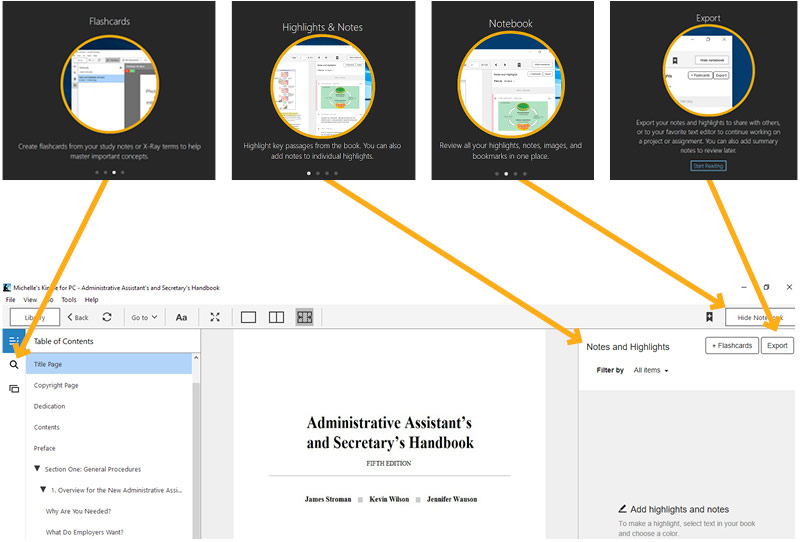
Step 1:
Create an Amazon account if you don’t already have one. https://www.amazon.com
Step 2:
Check your email.
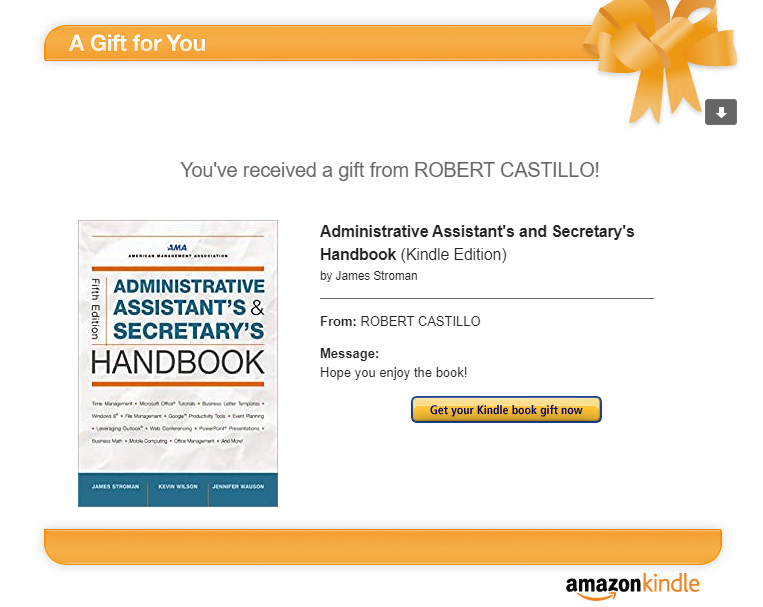
Step 3:
Click on the button “Get your Kindle book gift now”

Step 4:
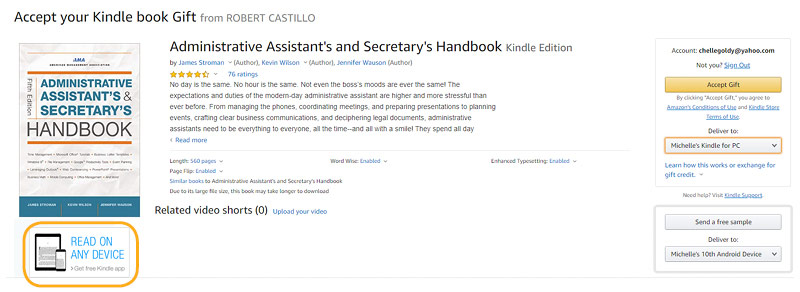
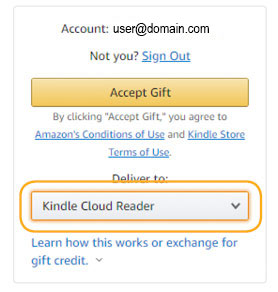
A. If you already have the Kindle App installed, you should click “Accept Gift”. Then skip to Step 5. Make sure to identify where you want it delivered to. (Your Kindle App may be available on more than 1 of your devices; phone, iPad, computer. Once the eBook is downloaded you should be able to access it on all devices with the App).

B. If you don’t have the Kindle App to download your book into click on “Read on any device” at the bottom left corner of the webpage.
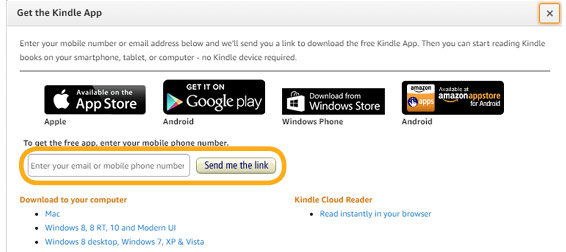
Add your email address and click Send me the link.
Check your email to access the link to download.
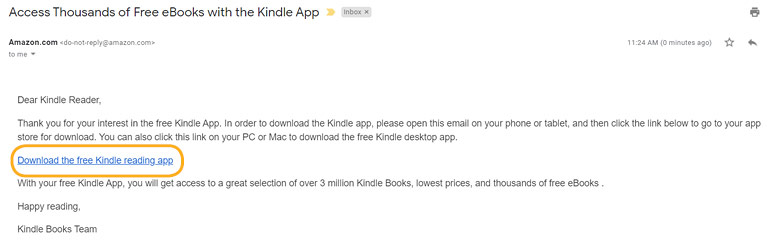
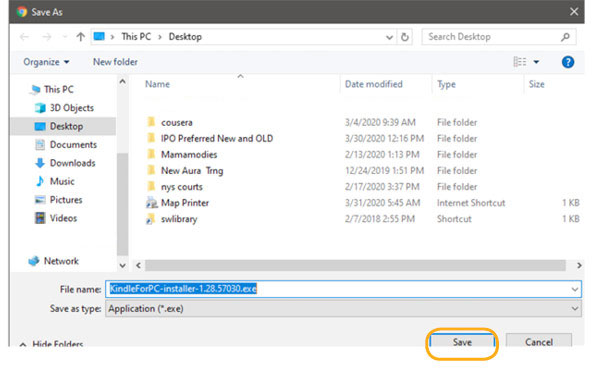
An executable file will be downloaded. Save the file to your Desktop.
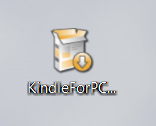
Double click and run the executable file. Follow the on-screen prompts to install the software.
Accept gift. You may be required to log in to your Amazon account. You can choose where to review your gift/eBook.
Go onto Step 5 to access your eBook.
Step 5:
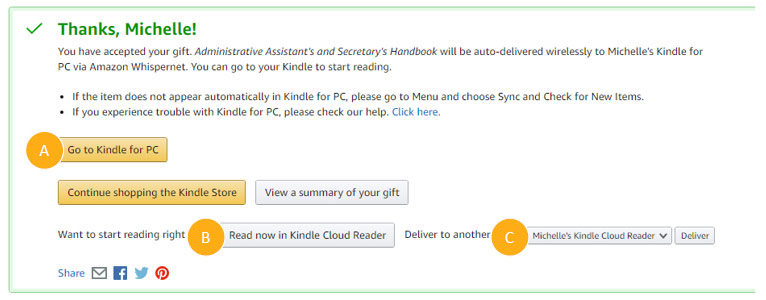
Now that you have accepted the book you have some options to access your eBook: (A) In your newly downloaded or existing Kindle App, (B) Read on the Kindle Cloud reader or (C) Request it to be sent to another of your devices.
Step 5, Option A:
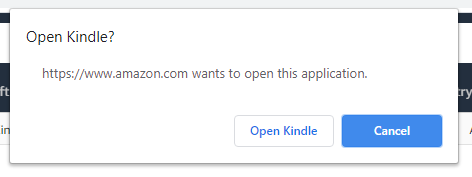
Click the “Go to Kindle for PC” button on the Amazon confirmation page to open. Then click the “Open Kindle” button if prompted.
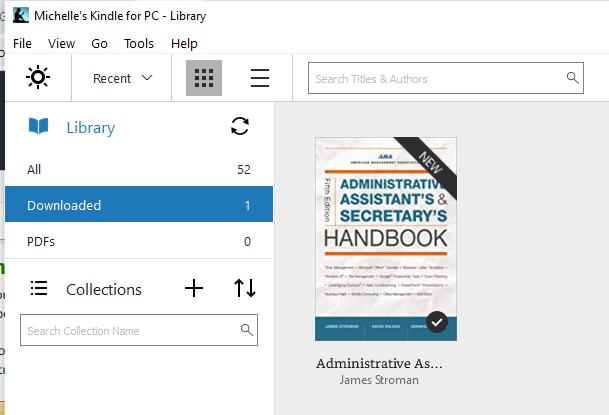
Select the book from the “Downloaded” section of your Kindle Library.
Step 5, Option B:
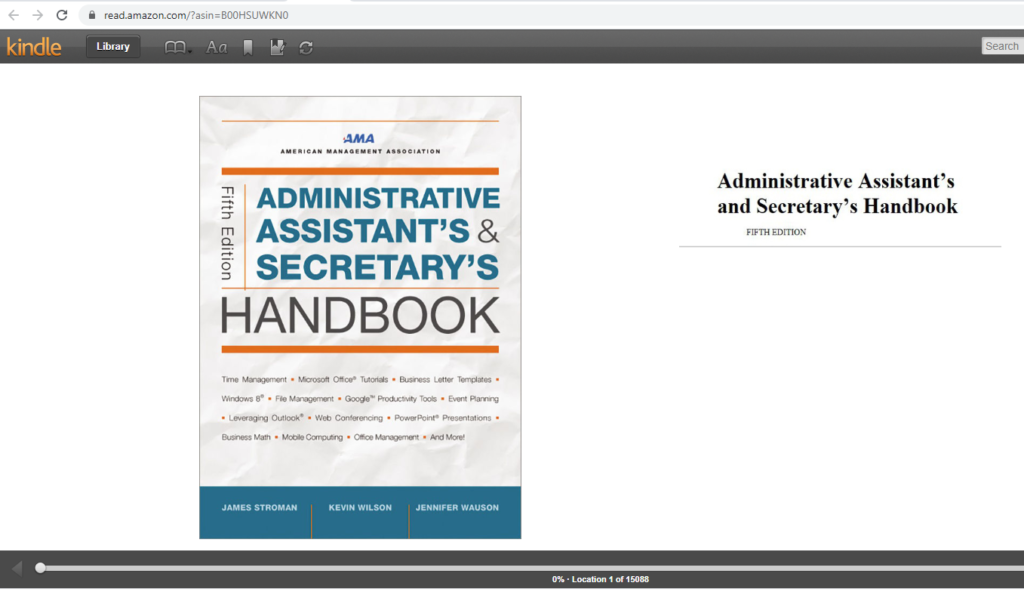
Click the “Read now in Kindle Cloud Reader” button. Your eBook will open using Amazon’s web-based cloud reader.

Step 5, Option C:
Please follow the manufacture’s instructions for your device on how to download eBooks.
Using the Kindle Reader for PC: